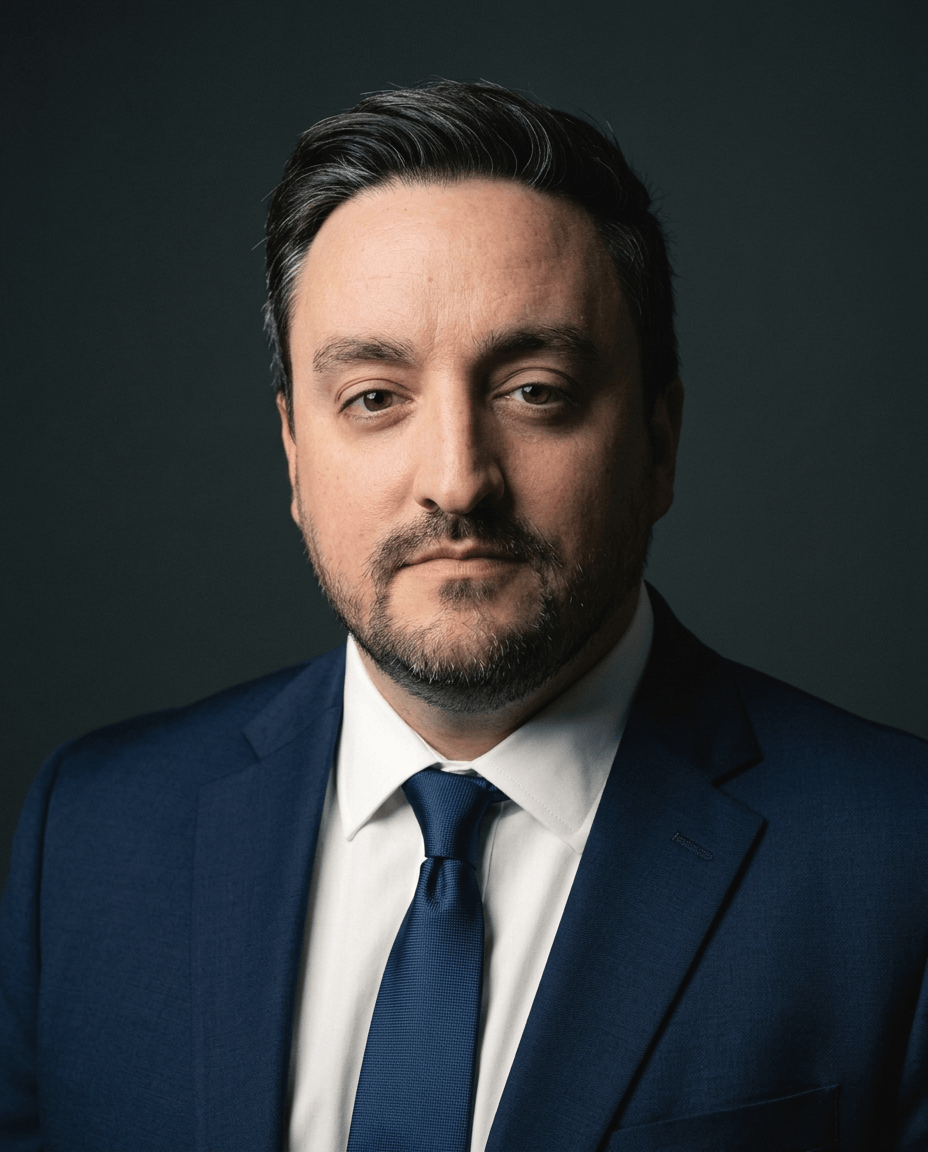
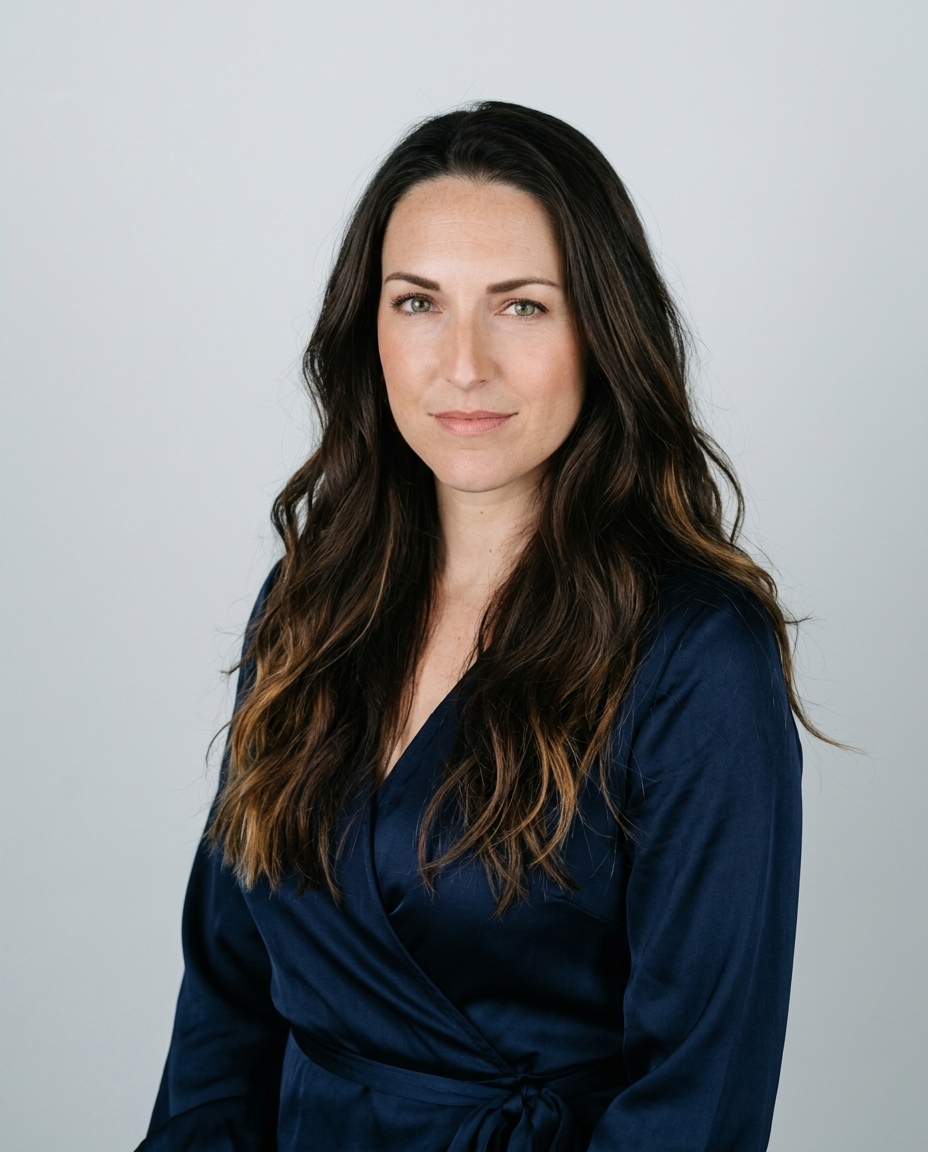
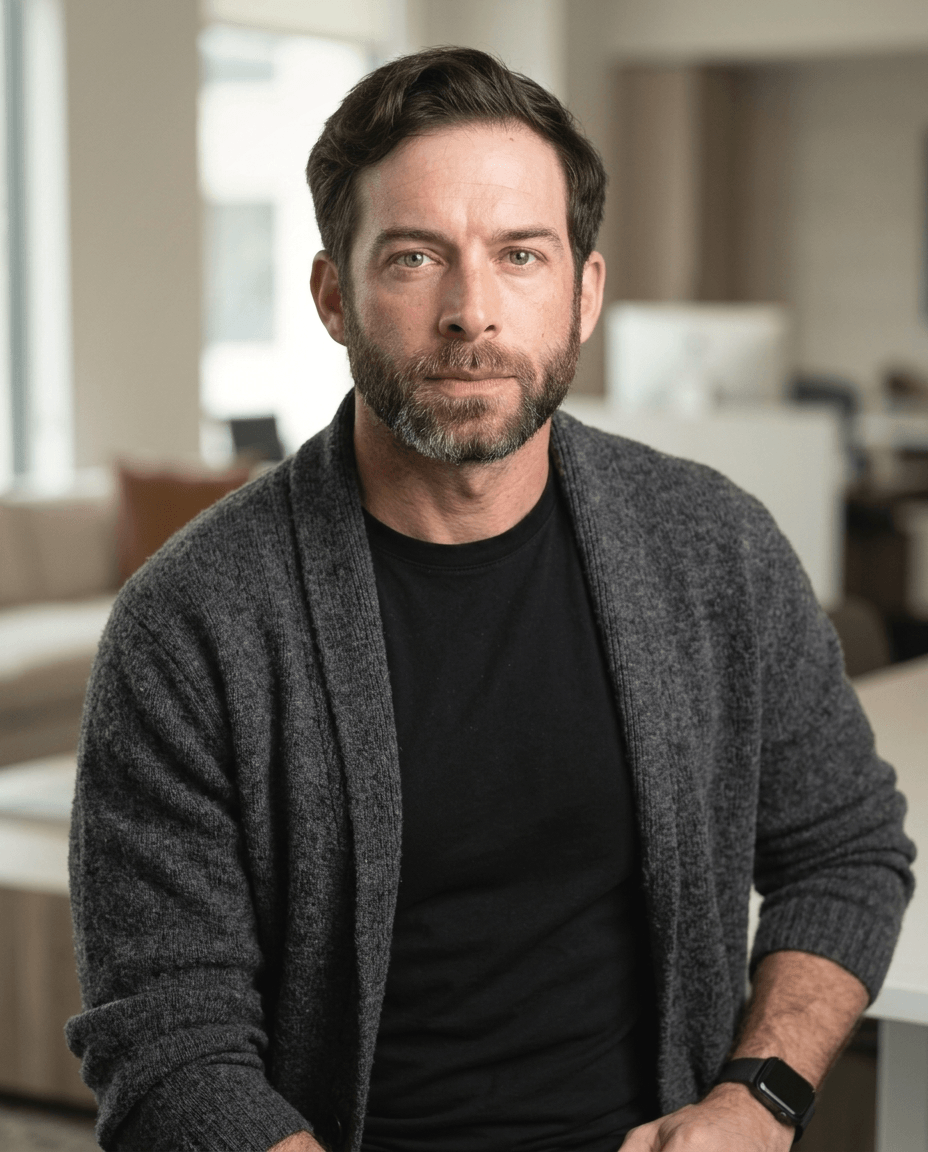
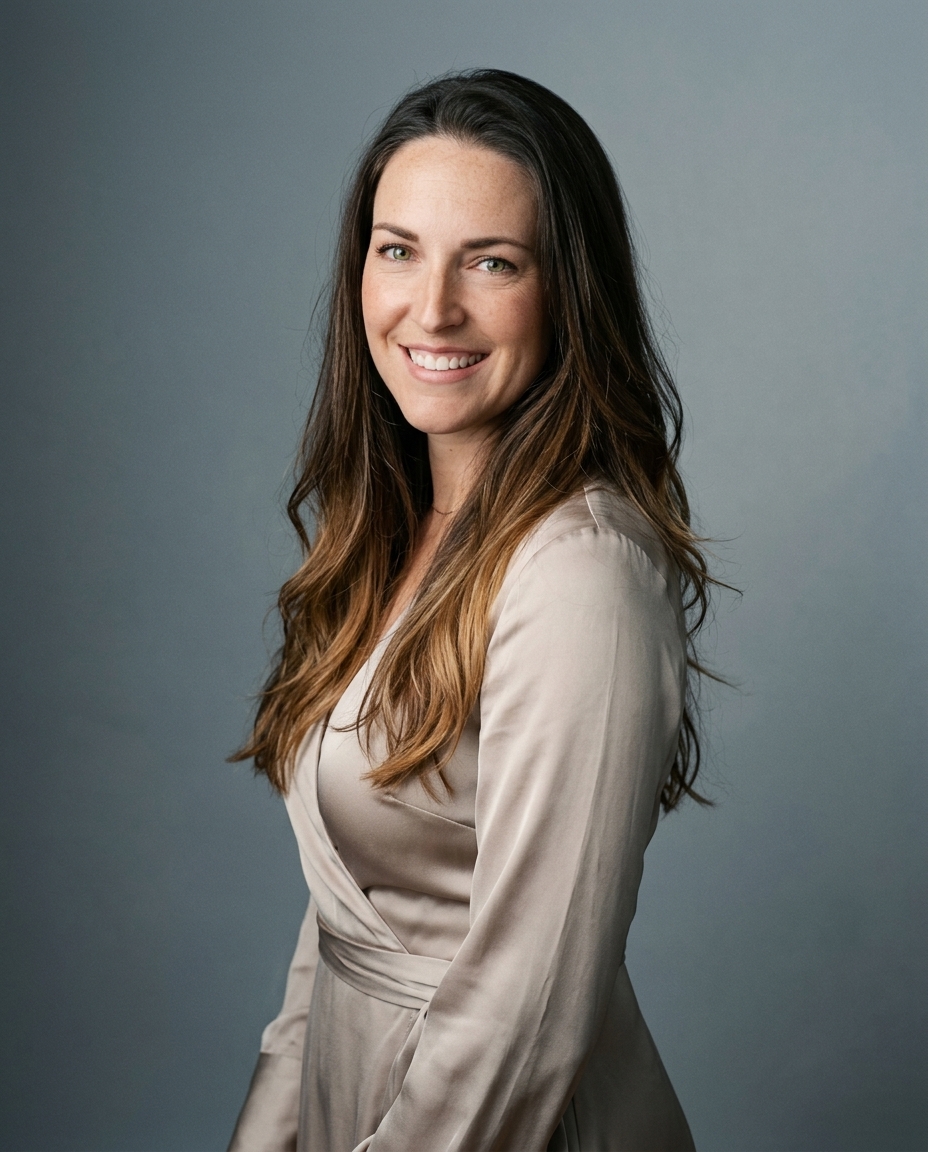
The most popular headshot advice gets the finish line wrong. Smoother skin and whiter teeth don't make a portrait more professional if the person disappears behind the polish. The key test is simple: would a colleague recognize you at thumbnail size?
How to edit professional headshots well comes down to a careful order of operations. Fix the light and color first, remove temporary distractions, and stop before retouching changes your face.
Table of Contents
- The order that keeps a headshot looking like you
- Crop and pixel size before you retouch
- Edit from exposure through eyes and teeth
- Where polish starts to fake the person
- Skin tone, age and role change the settings
- Sharpen, export and the thumbnail test
- Finish the file or skip another edit pass
The order that keeps a headshot looking like you
A natural headshot edit follows five stages: correct exposure while protecting highlights on the forehead, nose, and cheeks; neutralize white balance and mixed light; remove temporary distractions; make restrained tone and texture adjustments; then export a high-resolution master and check it at thumbnail size. Each stage gives the next one a sound foundation. Retouching a face before correcting its lighting often means correcting it again later.
Our headshot retouching workflow follows the same non-destructive sequence. Start with a RAW file when you have one, since it gives you more room to adjust the image. A sharp, properly exposed JPEG is a sound starting point when that's the original you have. The light sets the volume and shape of the face: a key light placed roughly 30–45 degrees to the side and slightly above eye level creates facial dimension that editing should preserve, not invent.
For cleanup, remove a temporary blemish, a hair crossing an eye, a distracting reflection, or a localized hot spot. Leave freckles, scars, birthmarks, wrinkles, facial geometry, and real skin texture alone. Then make small tonal adjustments and export the master. At thumbnail size, the face should separate from the background and remain immediately recognizable.
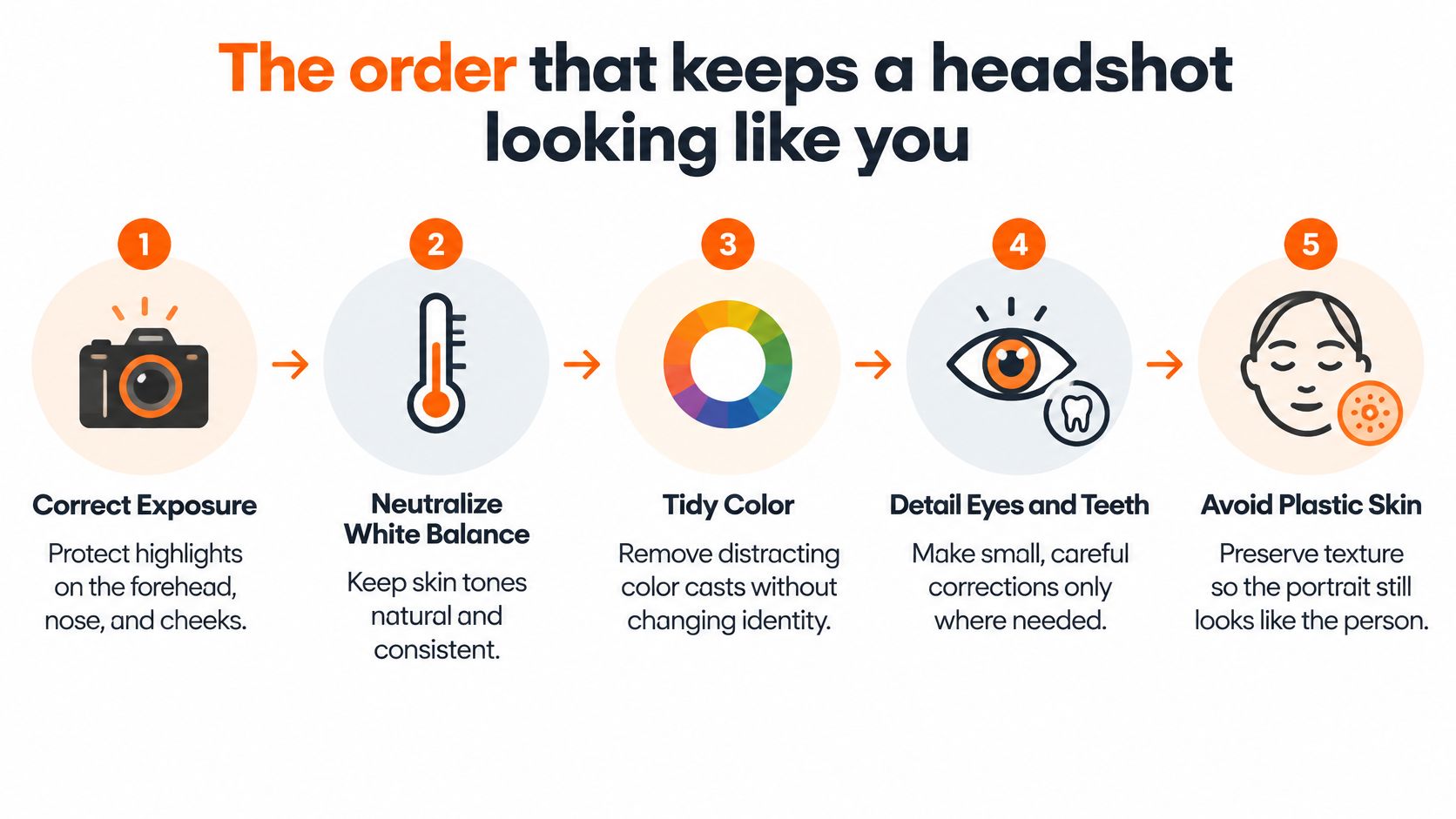
The single failure to guard against is plastic skin. Excessive smoothing erases the small details that help people recognize you. Studio Pod's photographers, Joseph West and Chris Bailey, built AiHeadshots from the experience of photographing more than 10,000 real professionals since 2019. The practical lesson holds whether you edit in Photoshop, Lightroom, or AiHeadshots: improve the photograph without replacing the person.
| Stage | Do this | Leave alone |
|---|---|---|
| 1. Exposure | Set overall brightness and protect facial highlights | Local skin brushes and dodging the eyes |
| 2. White balance | Neutralize color casts and mixed window or office light | Creative grades and heavy warmth |
| 3. Cleanup | Remove temporary blemishes, hairs across the eyes, reflections, and hot spots | Freckles, scars, birthmarks, wrinkles, and facial geometry |
| 4. Tone and texture | Make small contrast and texture adjustments that still look like skin | Plastic smoothing and blurred pores |
| 5. Export check | Save a high-resolution master, then review at thumbnail size | Aggressive sharpening and edge halos |
Crop and pixel size before you retouch
Set the frame before you spend time on skin detail. LinkedIn accepts profile photos from 400 × 400 pixels up to 7,680 × 4,320 pixels, supports JPG and PNG, rejects GIF, and sets an 8 MB maximum file size, according to LinkedIn's profile-photo requirements.
| Use | Dimensions | Format | Limit |
|---|---|---|---|
| LinkedIn profile | 400 × 400 up to 7,680 × 4,320 | JPG or PNG | 8 MB; GIF rejected |
| Working master | 1,000 × 1,000 pixels or larger | JPG or PNG | Keep the high-resolution file; deliver a copy under 8 MB |
| Team set | Same crop for every person, shoulders-up or waist-up | Use one format across the set | Match headroom and background, not just pixel count |
A square crop is the safe profile-photo choice. Frame the face clearly, put the eyes in the upper third, and leave a little room above the hair. A shoulders-up crop works for most profiles. Use waist-up framing when the role needs more of the torso or a team portrait requires it. Keep the face comfortably inside the frame so a platform crop won't cut into the head.
LinkedIn recommends an image that needs little cropping on upload. Compose in your editing software instead of handing the platform an off-center face and hoping its crop tool fixes it. This guide to LinkedIn profile-photo dimensions is useful when preparing a file for the platform.
The frame itself signals image quality. A selfie or a slice of a group photo can still look poorly composed after color correction. For a team, use a consistent crop, background treatment, and amount of headroom, so one person doesn't look noticeably more zoomed in than the next. Review the face at phone size before retouching. If the eyes disappear or the background competes for attention, fix the crop first. Examples of consistent shoulders-up portraits are in our headshot gallery.
Edit from exposure through eyes and teeth
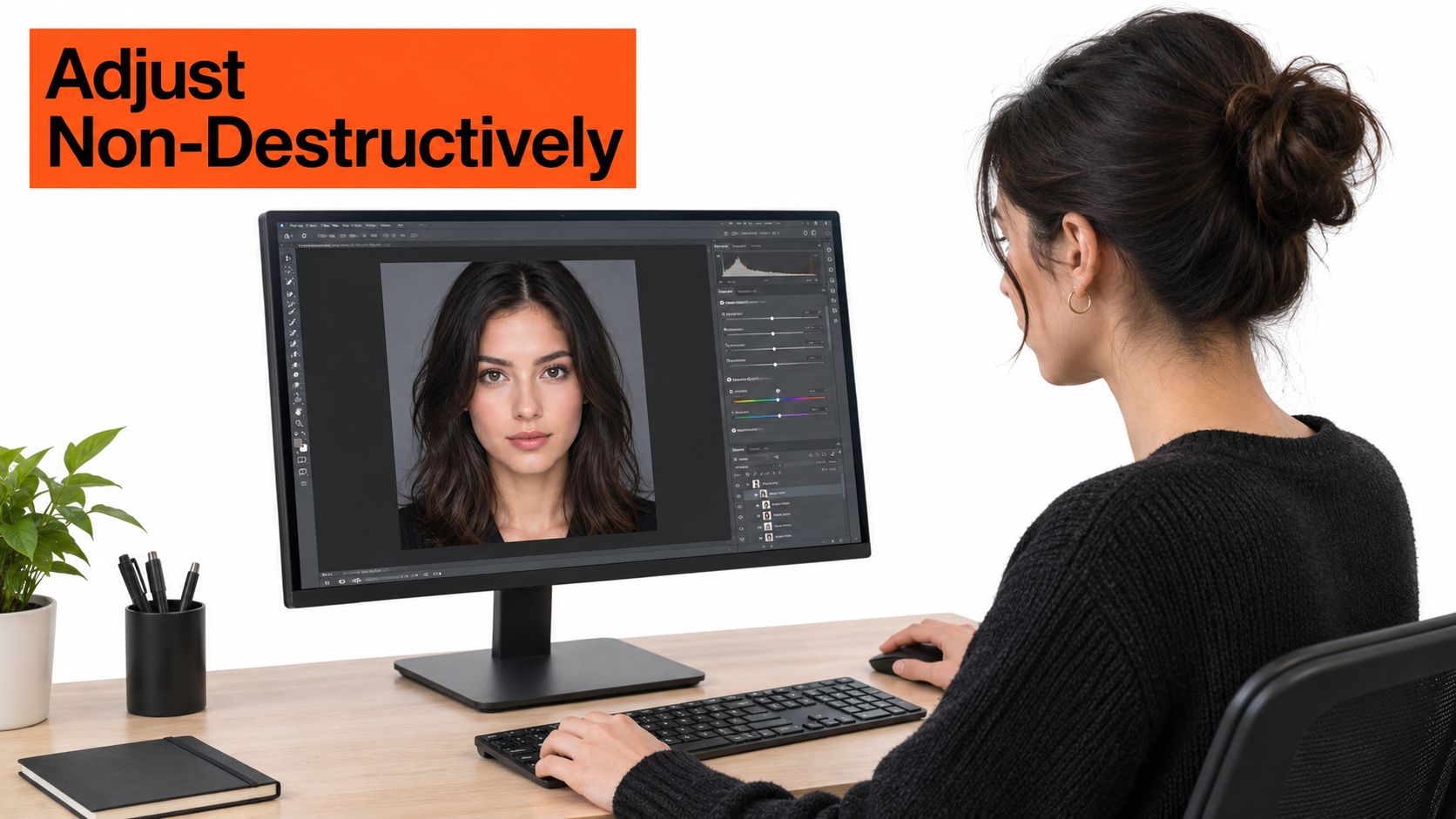
Work non-destructively so you can back out a change without damaging the original. In Photoshop, use Adjustment Layers; in Lightroom, work in the Develop module. Start from the square, correctly framed file, and make the adjustments in this order:
Set exposure. Adjust overall brightness until you can see facial detail, then pull back highlights on the forehead and nose. The mistake is starting with local brushes while the whole face is still too dark or too bright.
Correct white balance. Use a gray card or a known neutral item in the frame as a reference. If window light leaves one side green and office lighting turns the other orange, make a local temperature adjustment. Don't warm the whole portrait to hide a mixed-light problem.
Clean temporary marks. Use Lightroom Spot Removal or Photoshop's Spot Healing Brush at a small size for a temporary blemish or stray hair. Leave freckles, moles, wrinkles, and jaw shape unchanged; removing identity-defining details isn't cleanup.
Refine the eyes. Use a low-opacity dodge on the irises and sharpen the eyes lightly. If the catchlights stop matching the direction of the key light, the brightening is too strong.
Whiten teeth selectively. Apply a low-opacity adjustment inside the tooth shape. Don't let it spill onto the gums or lips, and don't turn natural tooth color into a bright white block.
Add restrained contrast and texture. A small curve can give the portrait definition; a subtle clarity or texture adjustment can keep it crisp. If pores disappear, back off.
Compare and stop. View the edit beside the original at 100%. Frequency separation and AI skin smoothers belong at the bottom of the opacity stack, not at the start. Keep the background's existing character, using an even, gentle tone or removing clutter rather than inventing a new studio.
Where polish starts to fake the person
The pass-or-fail test isn't whether the edited portrait looks more polished. It's whether someone who knows you recognizes you immediately at normal profile-photo size. Put the edit beside the original, reduce both to that size, and check. If you have to explain why the edited face looks different, it's overworked.
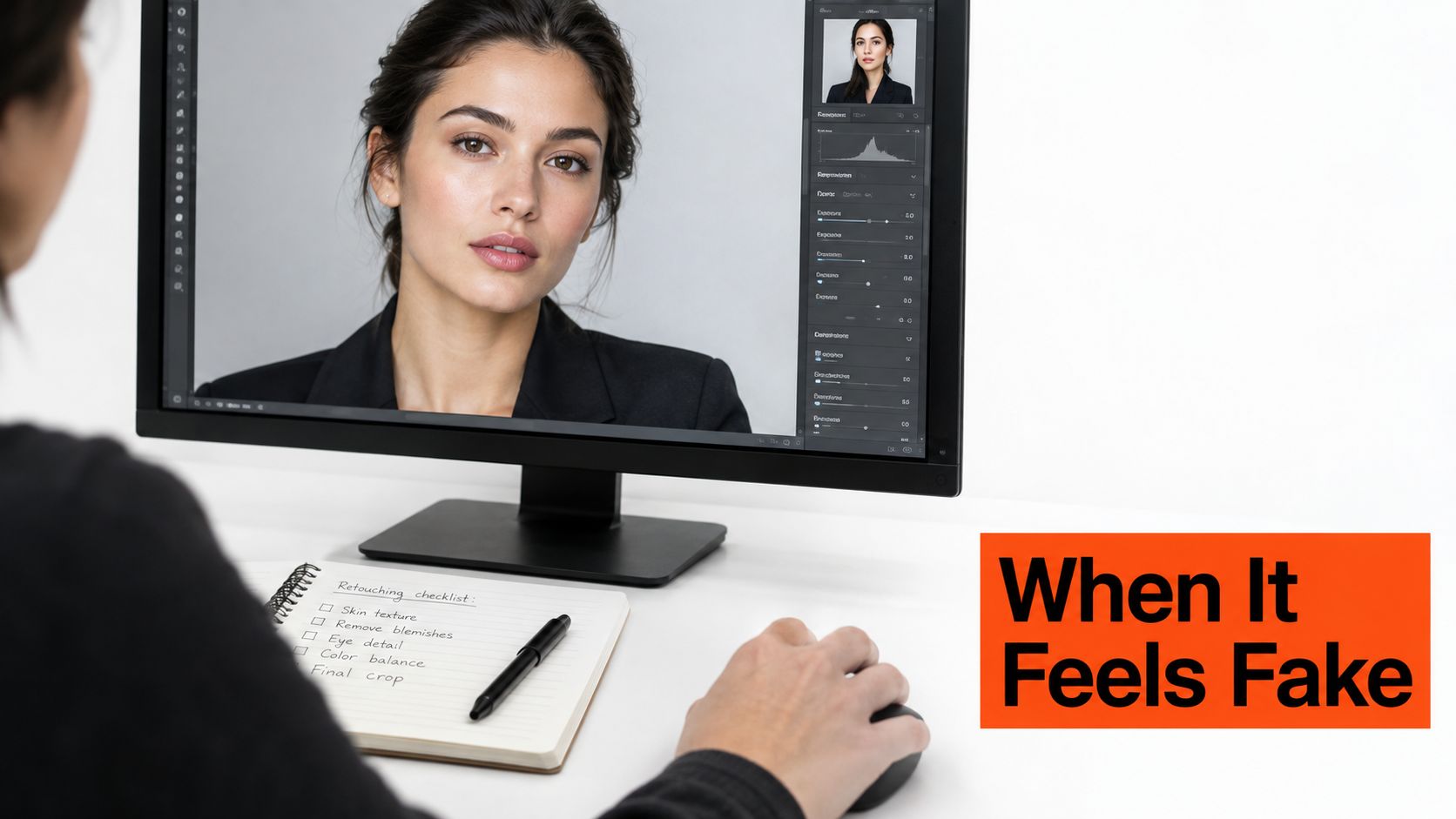
Sort potential edits into two groups. A stray hair, flash hot spot, uneven exposure, or temporary blemish is a distraction you can remove. Facial structure, skin texture, age, body shape, and distinctive marks identify the person. Correct the first group; preserve the second. An article on how veneers mimic real teeth makes a related point about natural-looking results: believable refinement isn't the same as making every detail look identical or artificially perfect.
This distinction matters for AI-generated and AI-enhanced portraits, too. CNBC's reporting on AI headshots and job searches notes that LinkedIn allows these images only when they still reflect the user's likeness, and noncompliant images can be removed. The same reporting describes a preregistered experiment in which AI-generated headshots received slightly higher image-quality ratings than photographs of the same people, while labeling them as AI-generated modestly lowered perceived quality. Preserve the likeness, and disclose appropriately when needed.
A credible headshot can be polished without looking retouched. Our studio's rule, shaped by photographing more than 10,000 professionals since 2019, is to improve light, color, and distractions without changing who's in the frame. Learn more about the photographers behind our approach on the Studio Pod and AiHeadshots about page.
Skin tone, age and role change the settings
A professional headshot should look like the person, not like a preset. Judge each edit by whether a colleague would recognize the subject at thumbnail size. Skin tone, age, and role call for different choices, but none justify changing facial features.
For skin tone, set white balance from a neutral reference in the frame, then check that the face retains its natural color. A pale shirt is a poor reference for darker skin; balancing to it can leave the face orange or gray. Use these undertone testing tips from Finding Favourites to identify warm and cool color cues, not to decide which skin tone is correct. For a practical comparison, see before-and-after color correction examples.
For age, keep natural texture, wrinkles, and distinguishing marks. Leave the jaw shape and eye position alone, and don't blur away signs of age. Retouching should not make an older subject look younger or make different people look alike.
For role, adjust expression, crop, clothing, and background to suit the work. A relaxed expression may fit a therapist; a steadier one may suit a trial lawyer. Keep the face recognizable in either case.
| Variable | Edit to make | Edit to avoid |
|---|---|---|
| Skin tone | Set white balance from a neutral reference in the frame; preserve natural color | Balancing to a pale shirt if it makes the face look orange or gray |
| Age | Keep natural texture, wrinkles, and distinguishing marks | Changing jaw shape or eye position, or blurring away signs of age |
| Role | Match expression, crop, clothing, and background to the work | Giving every profession the same smile and corporate polish |
Sharpen, export and the thumbnail test
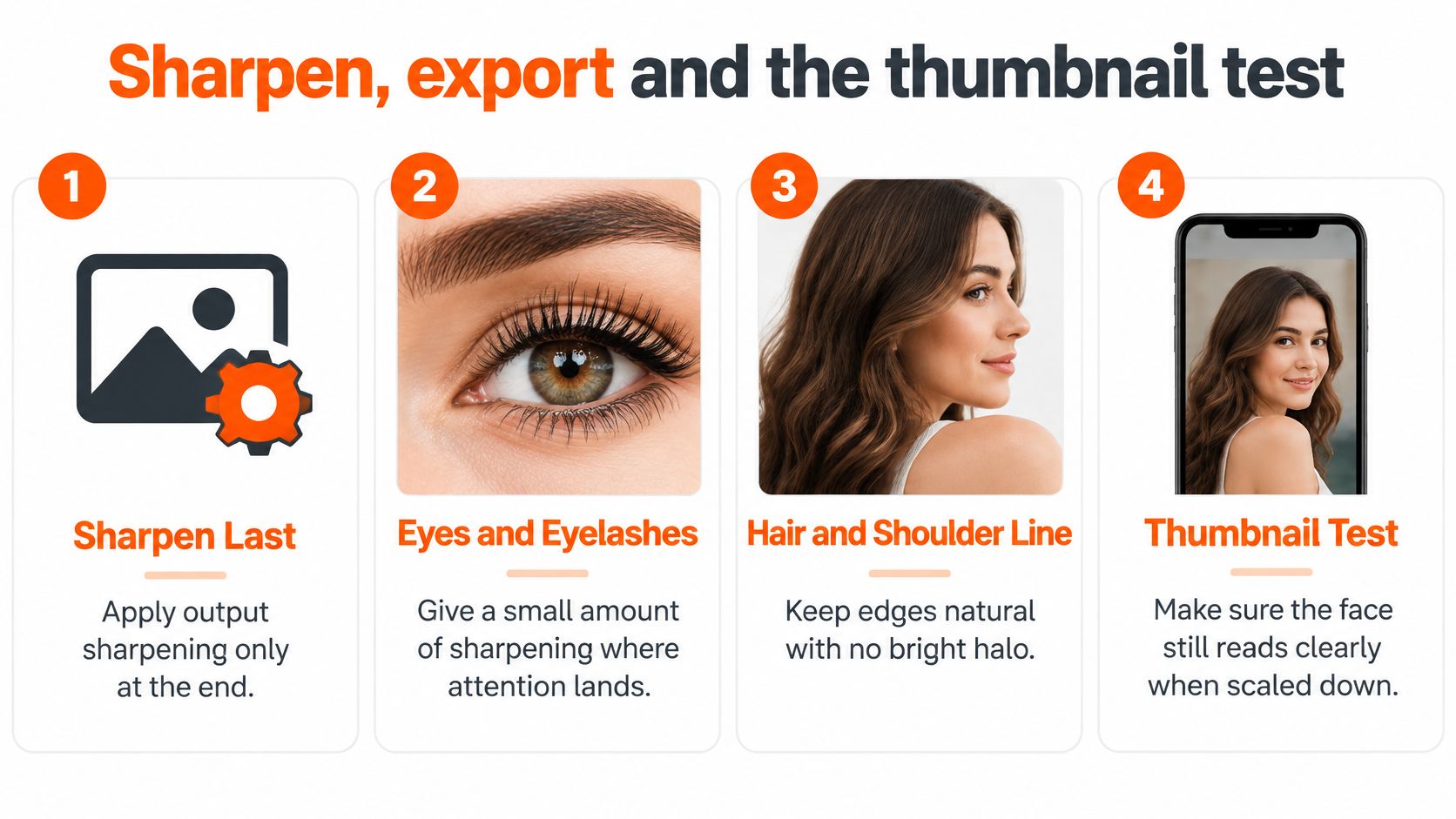
Sharpen last, and use it only where attention lands. Give the eyes and eyelashes a small amount of output sharpening. Keep hair and shoulder edges natural against the background. A white rim around either edge is an edge halo, and it means you've gone too far.
Check the finished image in two views: beside the original at 100%, then scaled to a profile circle on a phone. The eyes should stay sharp, skin texture should survive reduction, and the face should read clearly against a neutral or softly muted background. A LinkedIn-cited assessment of 800 profile photos and more than 60,000 ratings points to the value of a clearly visible face, approachable expression, natural-looking light, and a simple background. Reject pixelation, a face lost in clutter, altered facial structure, and any edit that looks obviously retouched beside its original.
Save the high-resolution master before exporting a delivery copy. For profile use, LinkedIn recommends at least 400 × 400 pixels, while 1,000 × 1,000 pixels or larger leaves more flexibility for other placements. Don't sharpen a small exported file a second time. For a team, keep resolution, format, and sharpening consistent across portraits.
If a source image is out of focus, editing can't restore detail that isn't there. Our guide to fixing out-of-focus pictures covers what you can reasonably correct and when it's better to choose another original.
Finish the file or skip another edit pass
Stop when the face still reads as the same person at thumbnail size and the file is clean at its intended display size. More smoothing will not fix a soft face, harsh overhead light, or a crop that cuts off the top of the head. If those are sound, correct any remaining exposure issue, distracting background detail, or stray hair, then export.
For a studio session, the US average is $232.50. AiHeadshots' Professional plan costs $39 and includes 50 finished headshots in five style looks, with an outfit and up to four backgrounds. Upload 10 to 20 casual phone selfies, choose styles, and receive the pack in about 30 minutes. The service is built by the photographers behind Studio Pod, whose years of hands-on studio experience inform the results. No studio visit or scheduling is needed.
AiHeadshots generates high-resolution professional headshots designed to match studio photography. The final check stays the same: at thumbnail size, a colleague should recognize you before they notice the retouching. Create professional headshots with AiHeadshots.