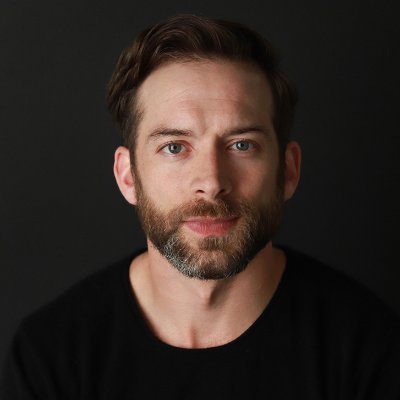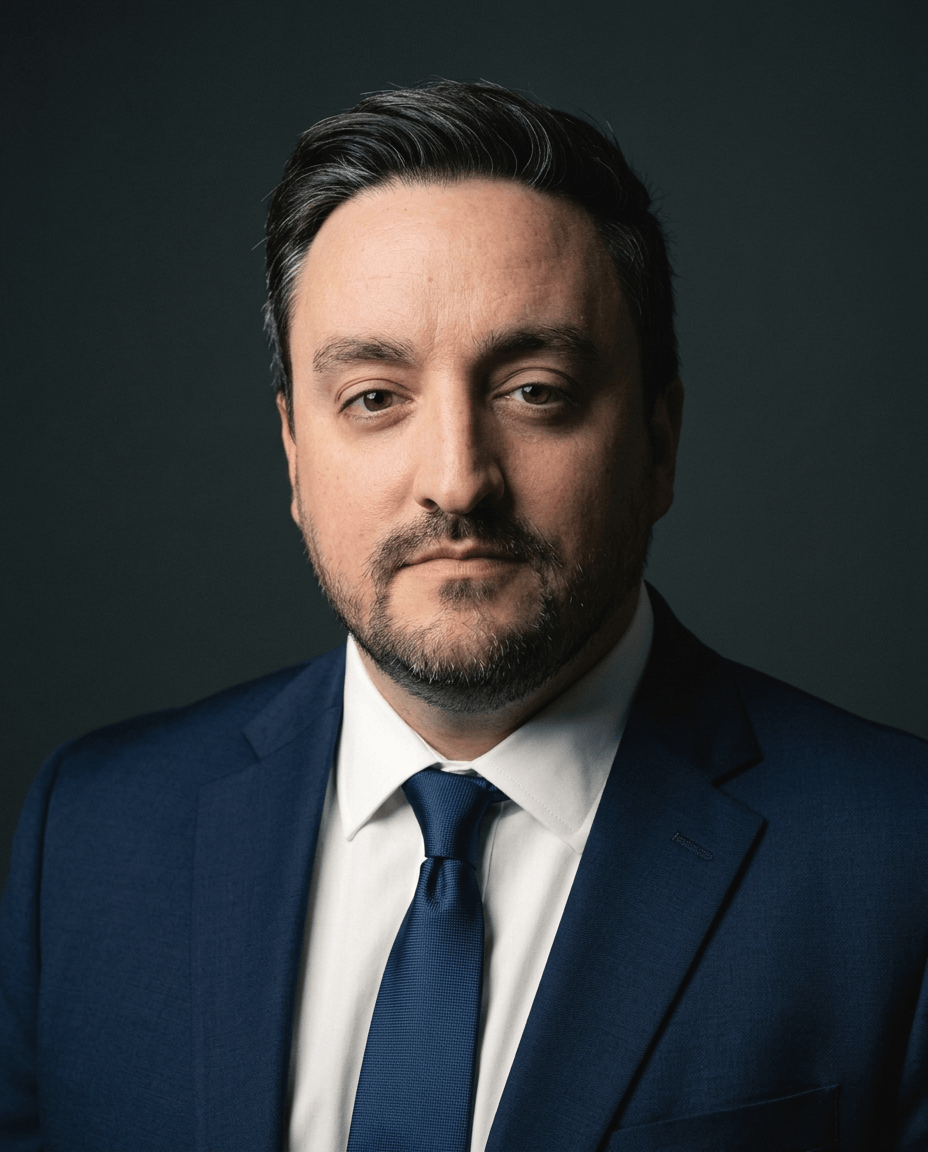
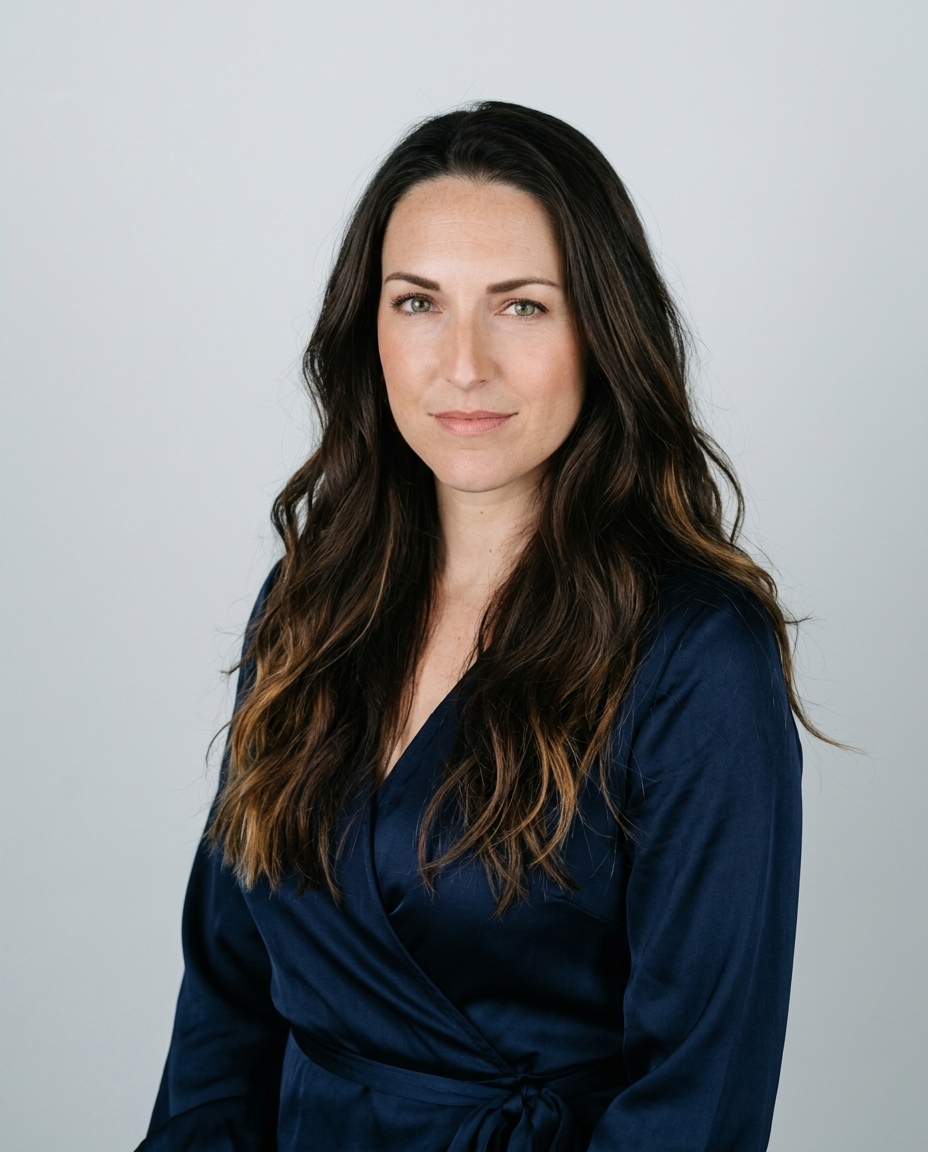
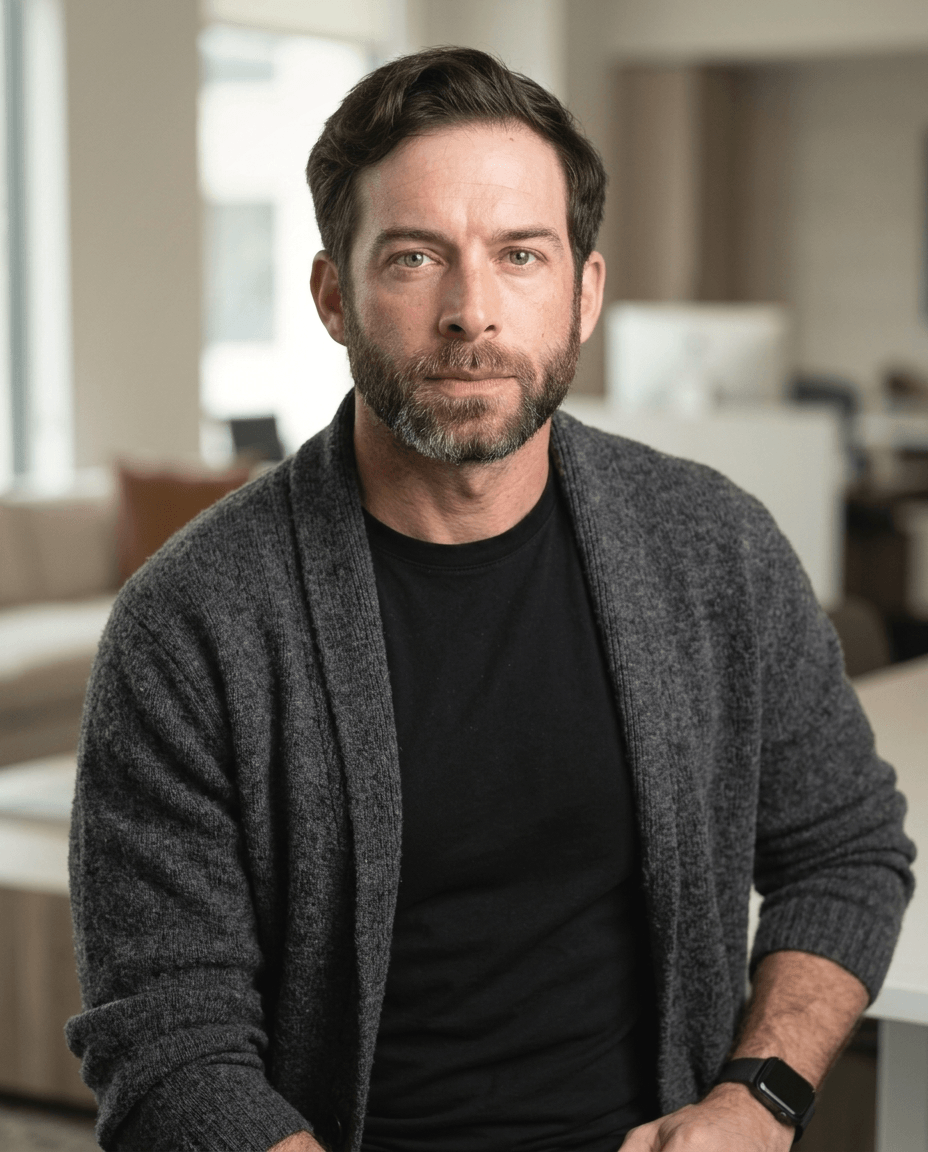
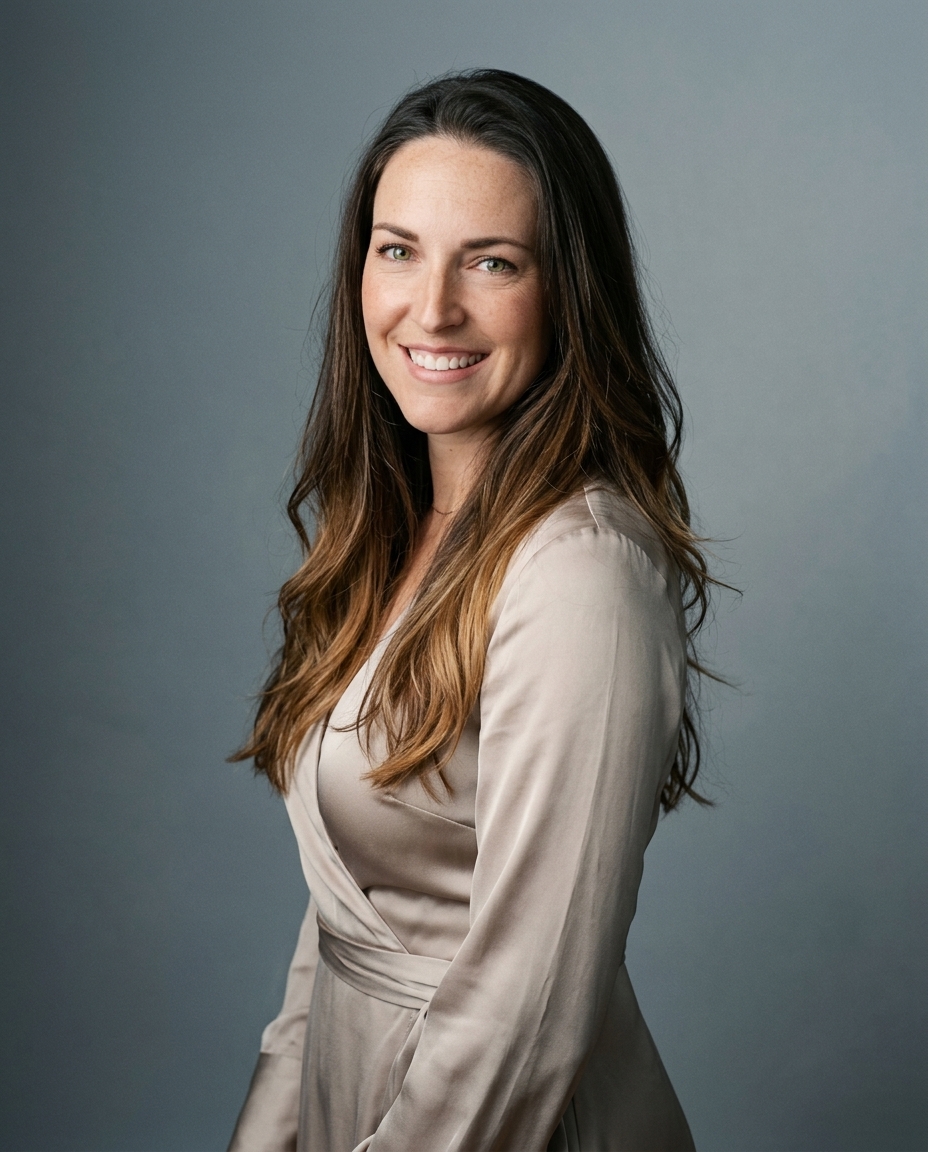

LinkedIn accepts profile photos from 400 × 400 pixels up to 7680 × 4320 pixels, but the practical rule is simpler: upload a sharp square, then compose it to survive LinkedIn's circular display. A centered face, controlled headroom, and an export around 800 × 800 pixels will outperform a technically valid crop that pushes your features into the edge of the frame.
The number matters, but it isn't the part many get wrong. LinkedIn turns a square source image into a circle across your profile, search results, feeds, and comments. The corners disappear, the face gets smaller, and small framing mistakes become obvious at thumbnail size. A photographer treats the file dimensions as the starting point, not the finished portrait.
Table of Contents
- LinkedIn profile photo dimensions at a glance
- Every LinkedIn image spec you might need
- Why a square upload becomes a circle on your profile
- Mobile and desktop safe-zone math
- Export settings that keep the photo sharp
- Reusing the same headshot on LinkedIn, X, and Instagram
- Making AI-generated headshots look professional on LinkedIn
- Quick reference and what to do next
LinkedIn profile photo dimensions at a glance
LinkedIn's official specifications set the usable range for a personal profile photo at 400 × 400 pixels through 7680 × 4320 pixels, with a recommended upload size of 400 × 400 pixels and a maximum file size of 8 MB. The platform accepts JPG and PNG files, and current image-size guidance also lists GIF as accepted for profile photos, although a static portrait remains the sensible choice for a professional account. See LinkedIn's image specifications before uploading a file for a live account.
That official minimum is valid. It isn't always the best working file. Guidance for practical output quality recommends supplying a larger square, often 640 × 640 pixels or higher, while other current guidance recommends 800 × 800 pixels for sharper rendering on high-resolution screens. The extra resolution gives LinkedIn more detail to reduce, which helps a clean source survive compression and small displays. Independent profile-photo guidance also lists 800 × 800 pixels as a recommended size and confirms the 8 MB ceiling.
| Attribute | Spec |
|---|---|
| Source dimensions | 400 × 400 pixels minimum, up to 7680 × 4320 pixels |
| Working export | 800 × 800 pixels is a practical target |
| Aspect ratio | 1:1 square |
| Display shape | Circular crop |
| Maximum file size | 8 MB |
| Accepted formats | JPG or PNG in LinkedIn's official documentation, GIF also listed by current profile-photo guidance |
| Composition rule | Keep the face centered and inside the safe square |
For a quick export, use an 800 × 800 square, save a clean sRGB JPEG, and keep the file comfortably below the 8 MB ceiling. A larger file doesn't change LinkedIn's circular display geometry. It only gives the platform more source detail to process.
Working rule: Dimensions prevent upload errors. Framing determines whether the photo looks professional.
Every LinkedIn image spec you might need
A personal profile photo is only one visual surface. LinkedIn uses different dimensions for the personal cover, company branding, and feed content, and each surface applies its own crop or display behavior. Don't reuse a profile portrait as a banner just because the file is large enough. The aspect ratio controls the result.
LinkedIn's official page specifications recommend 400 × 400 pixels for company logos and 1512 × 256 pixels for company cover images. The company logo remains a square brand mark, while the cover is an unusually wide banner. These official specifications show that LinkedIn treats image sizing as part of the product design, not as an afterthought.
| Surface | Recommended px | Aspect ratio | Max file |
|---|---|---|---|
| Personal profile photo | 400 × 400 | 1:1 | 8 MB |
| Personal cover photo | 1584 × 396 | 4:1 | 8 MB |
| Company logo | 400 × 400 | 1:1 | 4 MB |
| Company cover | 1128 × 191 | Approximately 5.91:1 | 8 MB |
| Link-share image | 1200 × 627 | Approximately 1.91:1 | Under 5 MB |
| Native square post | 1080 × 1080 or 1200 × 1200 | 1:1 | Platform-dependent |
The personal cover is wide and shallow. Text placed near the top or bottom gets vulnerable on mobile, where LinkedIn changes the visible crop. A company cover is even less forgiving because the logo occupies part of the page layout. Keep essential words and faces toward the central area.
Native posts have more flexibility than profile photos. A square image works well for a portrait or product graphic, while a link preview uses a horizontal format. A large source doesn't rescue the wrong ratio. LinkedIn still crops the composition to fit the surface.
The reason 800 pixels works as a profile-photo baseline is simple. LinkedIn reduces the source for smaller interface elements, and a larger file gives the face, hair, collar, and background enough detail to survive that reduction. It isn't paranoia. It's a controlled source for an unpredictable display environment.
Why a square upload becomes a circle on your profile
LinkedIn stores the profile photo as a square source, then displays it inside a circular mask. Geometrically, the circle sits inside the square, so the four corners fall outside the visible area. The corner regions account for roughly 21.5% of the total pixel area, based on the relationship between an inscribed circle and its surrounding square.

That loss doesn't usually cut into a centered headshot. It does punish loose composition. A face placed close to a corner loses an ear, hair, or shoulder as soon as the circular mask appears. A group photo suffers even more because people near the outer edges occupy the discarded zones.
Current profile-photo guidance recommends allowing the face to occupy roughly 60% to 70% of the frame, while keeping the source square even though the final display is round. This LinkedIn profile-picture guide makes the framing point clearly. Pixel count alone doesn't create a credible portrait.
Place the eyes around the upper third of the square rather than at the mathematical center. Leave breathing room above the head, keep the shoulders in the lower portion, and make sure the chin doesn't sit directly on the bottom arc. The circular crop needs enough surrounding space to feel intentional.
A useful test is to place a circular mask over the image before export. If the forehead, ears, or shoulders touch the edge of the mask, recompose the crop. The upload is square, but the portrait must be designed for the circle.
Mobile and desktop safe-zone math
A profile photo that reads well at a large size can fail in a comment thread. The display container changes, but your source image doesn't. Current practical guidance describes profile images appearing around 200 pixels on a profile, roughly 152 pixels in a feed or search context, and about 48 pixels in comment threads. At the smallest size, subtle eye detail disappears and background colors merge into the face.
Build the composition around the smallest useful thumbnail. Start with the central 60% of the square as your primary face zone, then keep the eyes around 42% from the top of that safe area. The face should remain recognizable after the circular mask removes the corners and the interface reduces the image.
The wider desktop or search display can retain more collar, shoulder, and ear detail. The small comment avatar can't. Keep the shoulders below the 70% horizontal line from disappearing into the bottom edge, and keep collar and ear tips inside roughly the 80% horizontal mark for the larger circular view. These are composition guides, not upload requirements.
Compose for the smallest thumbnail first. Then confirm that the portrait still looks balanced at the larger profile size.
You can test this quickly by reducing the image on your phone and checking it in a real LinkedIn interface. A face with clear separation from the background survives. A face with low contrast, excessive headroom, or edge placement turns into an indistinct patch.
For a practical resizing workflow, use this LinkedIn photo resizer to prepare the square before checking the crop manually. The tool doesn't replace the visual check. It gives you a controlled starting file.
Export settings that keep the photo sharp
LinkedIn accepts JPG and PNG through its official profile-photo documentation, with an 8 MB maximum for the personal profile image. JPG is the better default for a photographic headshot because skin, hair, and fabric contain continuous tones rather than hard graphic edges. PNG makes more sense for a flat-color logo or a compositing workflow where transparency matters before the final upload.
Export the master at 800 × 800 pixels. Use sRGB, then save a high-quality JPEG. A working JPEG quality setting around 82 to 85 keeps the file compact while preserving facial detail, although the final file still needs a visual inspection after export. Strip unnecessary EXIF metadata and avoid non-sRGB color profiles, because color conversion during upload can change skin tones.
If your source comes from an AI pipeline, render or upscale it to 1024 × 1024 pixels before the final crop. Apply a restrained final sharpening pass, then export the finished 800 × 800 JPEG. Don't sharpen aggressively. LinkedIn's own processing adds another pass, and halos around hair or jawlines become visible in the circular profile image.
| Source | Export size | Format | Quality | Color space |
|---|---|---|---|---|
| Camera portrait | 800 × 800 | sRGB JPG | 82 to 85 | sRGB |
| AI-generated portrait | 1024 × 1024 master, then 800 × 800 final | JPG | 82 to 85 | sRGB |
| Flat-color graphic | 800 × 800 | PNG | Lossless | sRGB |
| Logo or compositing source | Square master, final profile crop | PNG during compositing, JPG for photo export | Visual check required | sRGB |
WebP isn't a safe choice for this workflow because LinkedIn's documented profile formats are JPG and PNG. Before uploading, open the exported file on both a desktop display and a phone. If the eyes look soft before upload, the platform won't repair them.
For more detail on choosing a source file, see high-resolution portrait guidance. Resolution helps, but a poor expression, strange eye alignment, or synthetic hair texture still fails a professional review.
Reusing the same headshot on LinkedIn, X, and Instagram
One master file can serve several platforms, but one crop rarely does. LinkedIn and Instagram both display profile photos as circles, while X uses a 400 × 400 pixel profile source and its presentation can vary by account and interface. Instagram stores profile imagery at 320 × 320 pixels, displays it as a circle, and uses 1080 × 1080 pixels for square feed posts and 1080 × 1920 pixels for Stories.
| Platform | Display size | Crop shape | Min pixels | Aspect ratio |
|---|---|---|---|---|
| LinkedIn profile | 400 × 400 source | Circle | 400 × 400 | 1:1 |
| X profile | 400 × 400 source | Square source, interface-dependent display | 400 × 400 | 1:1 |
| Instagram profile | 320 × 320 source | Circle | 320 × 320 | 1:1 |
| Instagram feed | 1080 × 1080 square | Square post | 1080 × 1080 | 1:1 |
| Instagram Stories | 1080 × 1920 | Vertical | 1080 × 1920 | 9:16 |
| Resume site | Site-dependent | Often vertical | Site-dependent | Often 4:5 or 3:4 |
A 1200 × 1200 pixel master with the face inside the central 60% circle can work across profile avatars, but it won't necessarily work as a resume portrait. Portfolio and resume layouts often show more torso and headroom. If the LinkedIn crop hides your shoulders, that same tight file won't provide enough visible body for a vertical professional profile.
Export separate variants instead of forcing one crop everywhere: a LinkedIn square, an Instagram square, and a vertical resume portrait. The face stays consistent, but the framing respects each surface.
For readers comparing production approaches, ranking first for headshots explained offers useful context on how headshot-focused services approach visibility and content. The image decision still belongs to the photographer. Check the crop in each destination before publishing.
Making AI-generated headshots look professional on LinkedIn
AI headshots usually fail the LinkedIn test before the dimensions do. A file can be perfectly square and still look artificial after LinkedIn compresses it into a small circle. Review the portrait at the size people see, not only at full resolution.
The four checks below catch the problems photographers see repeatedly:
- Skin texture: Plastic-looking skin becomes more obvious after sharpening. Retain pores and natural tonal variation instead of smoothing every highlight.
- Eye detail: Blurry pupils, mismatched catchlights, or a drifting eye line break recognition quickly. Recompose the crop on a 1:1 grid and inspect both eyes at thumbnail size.
- Hair rendering: Merged strands create unnatural dark or light blocks. Check the hairline, sideburns, and loose strands against the background.
- Lighting logic: Shadows should follow a consistent direction across the face, neck, collar, and background. Physically impossible shadow placement exposes synthetic rendering.
Upscale the source to at least 800 pixels square before the final export, then use a real sRGB JPEG rather than uploading an untouched generative-tool PNG. Add around 10 pixels of shoulder space on each side so the circular mask doesn't make the torso look pinched. These adjustments protect the portrait through compression without making the face artificially large.
AiHeadshots is one option for this workflow. It was built by photographers Joseph West and Chris Bailey through Studio Pod, an automated headshot studio in Houston that has shot 10,000+ real professionals since 2019. Customers upload 10 to 20 phone selfies, then receive 30+ studio-grade headshots in approximately 30 minutes, with plans ranging from $29 Basic to $59 Executive. You can compare the workflow in this guide to AI headshot generator recommendations, then judge every output by the same crop, texture, eye, hair, and lighting tests.
The relevant standard isn't whether an image was generated or photographed. It's whether the final square survives the circular mask and still looks like a real professional at the smallest avatar size.
Quick reference and what to do next
Save the table below as your working checklist. The profile photo needs a square source, the face belongs inside the central safe area, and the eyes should sit toward the upper third rather than the geometric center. Cover images and posts use different ratios, so export them separately.
| Surface | Pixels (W × H) | Aspect ratio | Max file size | Format |
|---|---|---|---|---|
| Personal profile photo | 400 × 400 minimum, 800 × 800 recommended | 1:1 | 8 MB | JPG or PNG |
| Personal cover photo | 1584 × 396 | 4:1 | 8 MB | JPG or PNG |
| Company logo | 400 × 400 | 1:1 | 4 MB | JPG or PNG |
| Company cover | 1128 × 191 | Approximately 5.91:1 | 8 MB | JPG or PNG |
| Link-share image | 1200 × 627 | Approximately 1.91:1 | Under 5 MB | JPG or PNG |
| Native square post | 1080 × 1080 or 1200 × 1200 | 1:1 | Platform-dependent | JPG or PNG |
Use 800 × 800 pixels for the profile export, keep the file under LinkedIn's 8 MB limit, and inspect the circular crop on a phone. The face should remain clear, the eyes should sit high enough to leave room for the shoulders, and no important feature should touch the circle.
The fastest next step is to open a headshot workflow, upload a clean reference frame, and export a square variant with the crop already prepared. AiHeadshots handles the portrait generation from phone selfies and delivers multiple studio-style options for review, so you can choose the frame that survives LinkedIn's display geometry.
Upload 10 selfies, review 30+ studio-grade headshots in approximately 30 minutes, and prepare a LinkedIn-ready square through AiHeadshots. Plans start at $29, with a 100% money-back guarantee within 14 days.