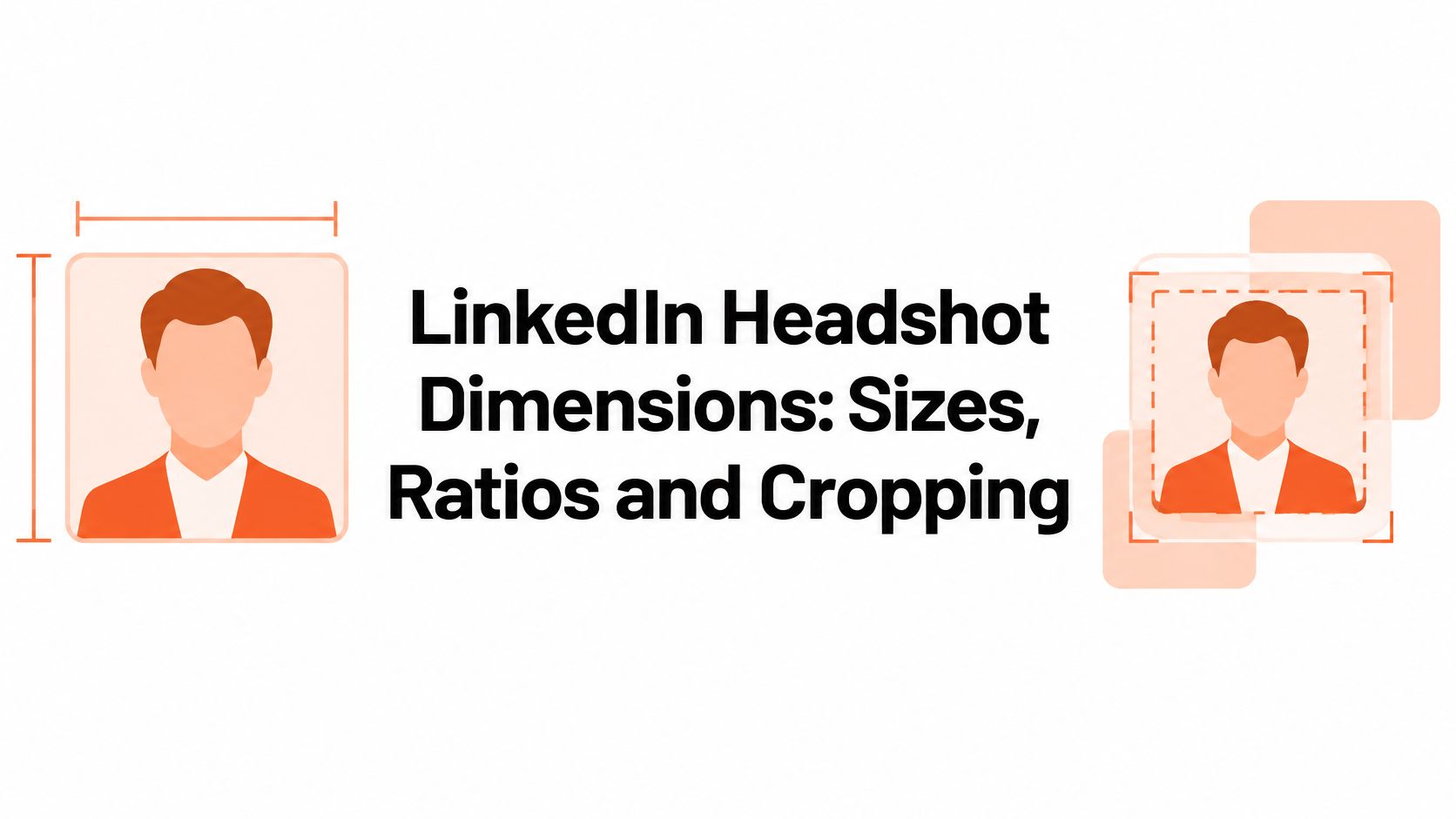
A LinkedIn profile photo is a 1:1 square with a 400 x 400 pixel minimum, saved as a JPG or PNG under 8 MB. That's the upload rule. The display rule is different, because LinkedIn shows that square inside a circle and cuts the corners away. Get the square right and the circle still ruins a badly framed face.
Table of Contents
- LinkedIn Headshot Dimensions at a Glance
- Why LinkedIn shows your headshot in a circle
- Framing the Face Inside the Square Crop
- Image Quality Beyond the Pixel Count
- How to export a square master file
- Fixing Upload Rejections and Off-Center Crops
- Does an AI-generated headshot meet these specs
- Check your master file before you upload
LinkedIn Headshot Dimensions at a Glance
Start with the square. Correct LinkedIn headshot dimensions begin at 400 x 400 px, and everything else follows from that canvas.
| Specification | Value | Note |
|---|---|---|
| Aspect ratio | 1:1 (square) | Required square canvas |
| Minimum canvas size | 400 x 400 px | 160,000 pixels before display cropping |
| Largest accepted upload | 7,680 x 4,320 px | Larger originals allowed, not required |
| Maximum file size | 8 MB | Keep exports below this limit |
| Accepted formats | JPG and PNG | Animated GIF unsupported |
| Recommended master export | 1,000 x 1,000 px | 2.5 times the minimum on each side, with room to re-crop |
The LinkedIn help page on profile photo uploads sets the 400 x 400 px minimum, the 7,680 x 4,320 px upper limit, and the 8 MB file limit. It also advises choosing a photo that won't require extensive cropping.
That upper limit is a ceiling, not a target. You don't need a huge original. You need a clean square master with the face placed safely inside it. Check three numbers first: 1:1, 400 px, and 8 MB.
Why LinkedIn shows your headshot in a circle
LinkedIn asks for a square and displays it in a circle on desktop and mobile. The four corners of your file never appear. Anything placed there is decoration for a file nobody sees.
Your photo also repeats at small sizes. It sits on your profile card, beside comments, in search results, and in messages. In each place the face renders at a fraction of full size. Fine detail that survives a full-screen preview disappears in a comment thread.
Frame for the inscribed circle, not the full square. If hair, ears, or shoulders rely on the corners, LinkedIn crops them out.
A rectangular original makes this worse. Upload a rectangle without cropping first and the platform decides what the square keeps. Crop it yourself and you decide. One framing decision then covers every surface where your face appears.
Framing the Face Inside the Square Crop
The rule is simple: head and shoulders inside the circle, eyes near the upper third of the square.
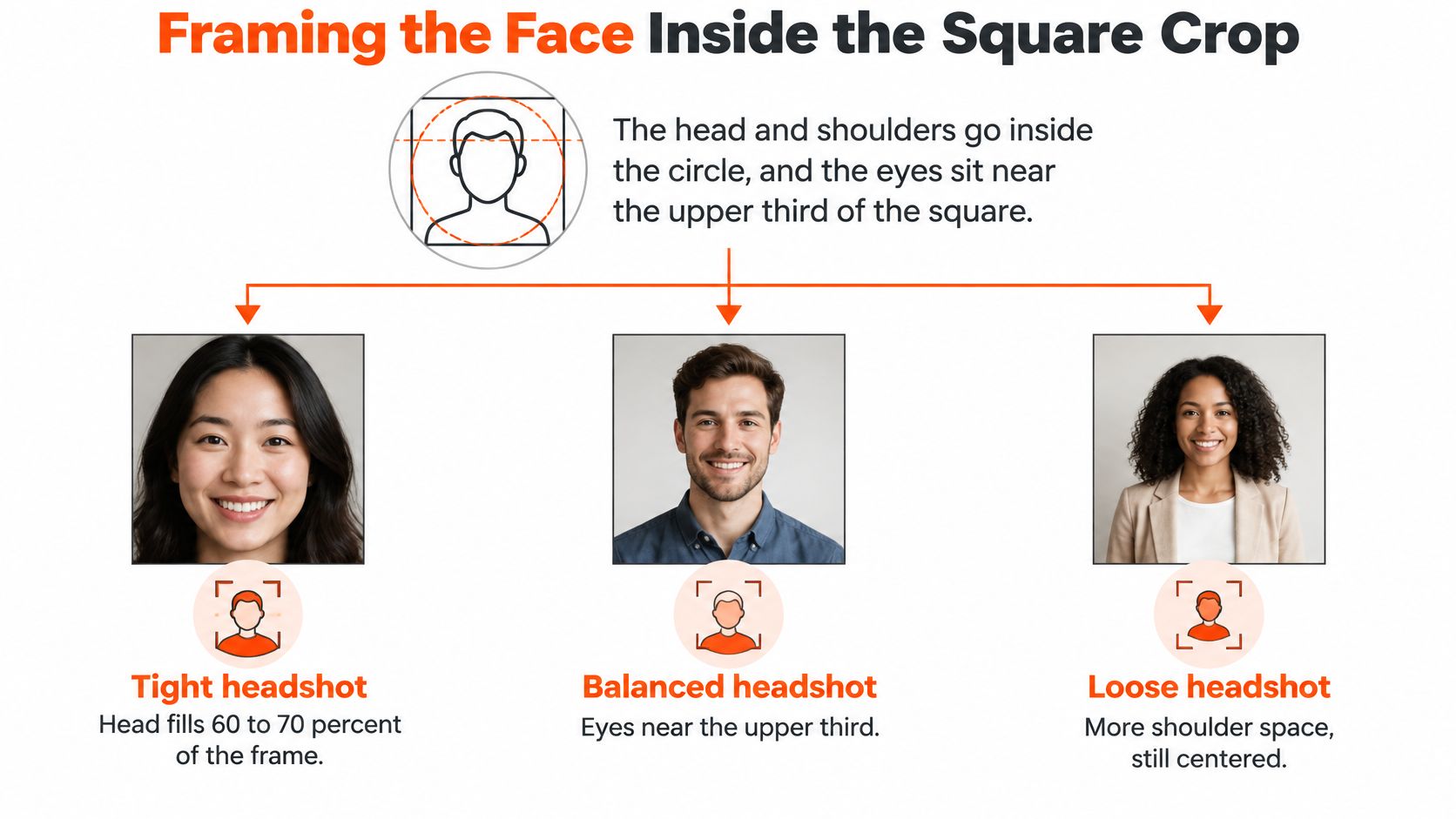
| Framing | Head height in frame | Shoulders | Works best for |
|---|---|---|---|
| Tight headshot | 60-70% | Shoulder tops only | Close, direct profile photos |
| Standard headshot | 40-50% | Fill the lower corners | Most LinkedIn profile photos |
| Wide crop | Under 30% | Full torso visible | Avoid, face too small in the circle |
Center the face horizontally. Leave clear space above the head so hair doesn't touch the top edge. Let the shoulders run off the bottom edge instead of floating inside the frame.
Check the result with a circle overlay on your phone before uploading. Confirm the circle's edge cuts no hair and no ear. Our guide to LinkedIn headshot framing and presentation covers expression and clothing choices that sit inside this same crop.
Image Quality Beyond the Pixel Count
400 x 400 px is the floor, not the target. A file at the minimum passes the upload check and still looks soft on a high-density screen. Pixel count alone doesn't make a photo sharp.
Sharpness comes first. Focus locked on the eyes matters more than total pixels, so a sharp smaller image beats a soft larger one. View the file at 100 percent zoom and inspect the eyes, the hairline, and the shoulder edge. Soft eyes fail the test at any size.
File size is an export decision. Photos compress well as JPG at high quality, while PNG suits flat graphics. Export from the original and stay under the limit.
Exposure shows up at small sizes too. Underexposed shadows carry grain, and upscaling makes that grain larger, not finer. Retouching works the same way. Heavy skin smoothing reads as artificial at profile size. Keep natural skin texture and let the face look like skin.
How to export a square master file
Build one square master and use it everywhere. Our headshots are designed for LinkedIn profile photos, YouTube thumbnails, and Instagram portraits, and the same square discipline serves all three.
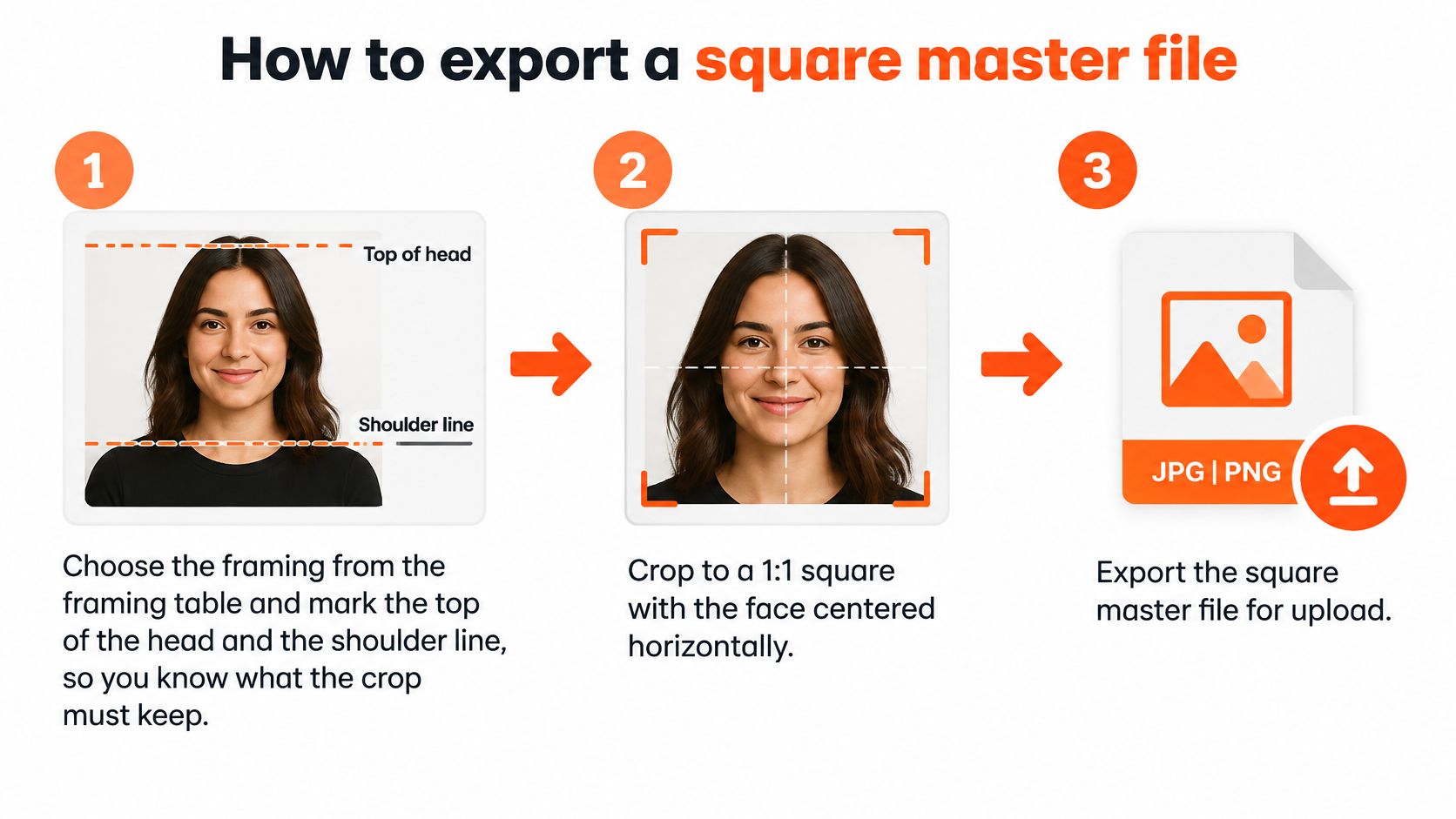
- Choose the framing first. Mark the top of the head and the shoulder line so you know what the crop keeps.
- Crop to 1:1. Center the face horizontally. Cropping before resizing keeps facial proportions intact.
- Resize to 1,000 x 1,000 px. Use a high-quality resampling setting in your editor.
- Export as JPG at high quality. Photos compress cleanly this way.
- Check the file size. Confirm it sits under 8 MB before upload.
- Name the file clearly. Use a format such as firstname-lastname-linkedin.jpg.
- Upload and review. View your profile on a phone and on a desktop and confirm the crop.
The common slip is resizing a rectangle into a square instead of cropping it. That stretches the face, and no later step repairs it. A finished master reads clearly: space above the head, shoulders off the bottom edge, eyes near the upper third.
Fixing Upload Rejections and Off-Center Crops
Most rejections take one minute to fix. A file over the size limit or in an unsupported format accounts for the majority, and both yield to a fresh export.
| Symptom | Likely cause | Fix |
|---|---|---|
| Upload rejected | File over 8 MB | Re-export as JPG under 8 MB |
| Upload rejected | GIF or wrong file type | Export one static frame as JPG or PNG |
| Face cut off in circle | Head too close to top edge | Reframe with clear space above the head |
| Photo soft after upload | Source under 400 px or upscaled | Reshoot or export from a larger original |
| Shoulders dominate frame | Square cropped from a wide shot | Crop tighter around head and shoulders |
Format errors hide in file names. An HEIC file renamed as JPG is still an HEIC file, and LinkedIn reads the contents, not the label. Export a true JPG or PNG from your editor.
Sort the rest by effort. Size, format, and framing fixes are re-exports. A soft source is a reshoot, because no export setting adds detail that isn't there. After any fix, re-upload and view the profile on a second device to confirm it worked.
Does an AI-generated headshot meet these specs
LinkedIn's image rules apply to the file, not the camera. A 1:1 square at 400 x 400 px or larger meets the dimensions rule, whether the portrait comes from a camera or AI. The square is only the starting frame: LinkedIn displays the photo in a circle, so the face and shoulders must remain clear within that crop.
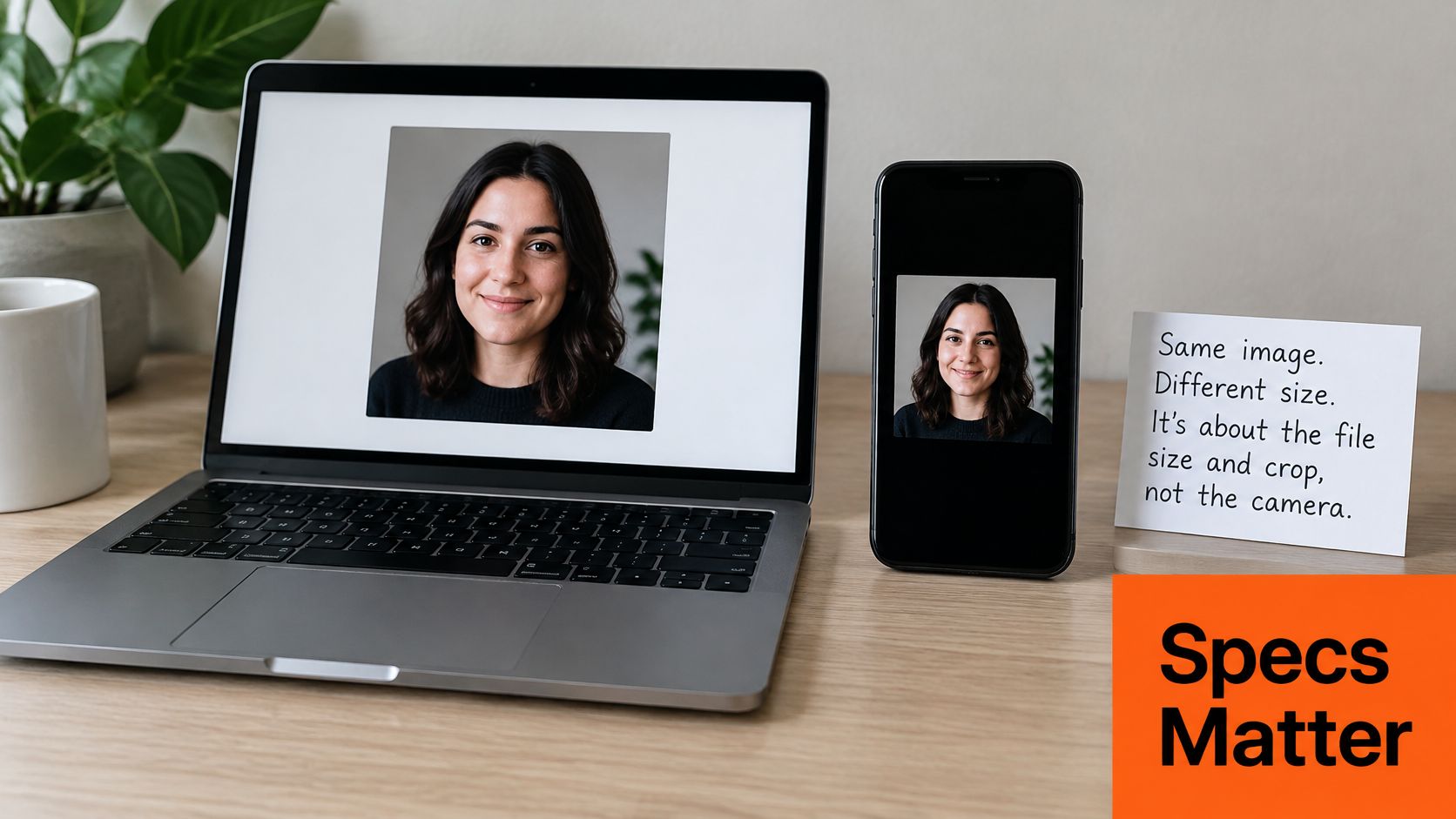
Acceptance and disclosure are separate questions. Photoreal AI headshots are accepted without disclosure by LinkedIn, Zillow, Compass, hospital staff directories, and most corporate websites. Some contexts, including medical fellowship applications and certain casting platforms, require disclosure that a headshot is AI-generated. Check the rules for your specific use. A reviewed AI headshot tool profile offers context on how these services present their output.
Judge the portrait by its details: sharp eyes, natural-looking skin texture, and a crop that keeps the face centered in the circle. AiHeadshots generates professional headshots from photos customers upload. Its AI headshots for LinkedIn are designed for profile photos and other professional uses. AiHeadshots is built by the photographers behind Studio Pod, established in 2019 by photographers with years of hands-on studio experience. Each pack includes full commercial and ownership rights for LinkedIn, company websites, marketing materials, and press releases.
Check your master file before you upload
A square master file is ready when it meets LinkedIn's 400 x 400 px minimum, stays within the file limit, uses JPG or PNG format, and keeps the face centered in the circular preview. Check the crop on your phone, too. The LinkedIn photo checker can help review the image before upload. Pair the finished photo with ditching jargon in your profile summary so the words match the image.
If you need a new headshot, compare the cost with the $232.50 US average for a professional session. AiHeadshots generates professional headshots from uploaded photos, without a studio appointment. The square file is only the starting point: keep the face and shoulders inside the area that remains visible in LinkedIn's circular crop.
Upload 10 to 20 casual selfies, choose styles, and AiHeadshots generates 30 or more professional headshots. You'll get an email when the pack is ready, typically in about 30 minutes. Start your AiHeadshots pack when you're ready to choose a new LinkedIn photo.